How to use the library
A two-minute walkthrough: sign in, find what you need, and share what you've built.
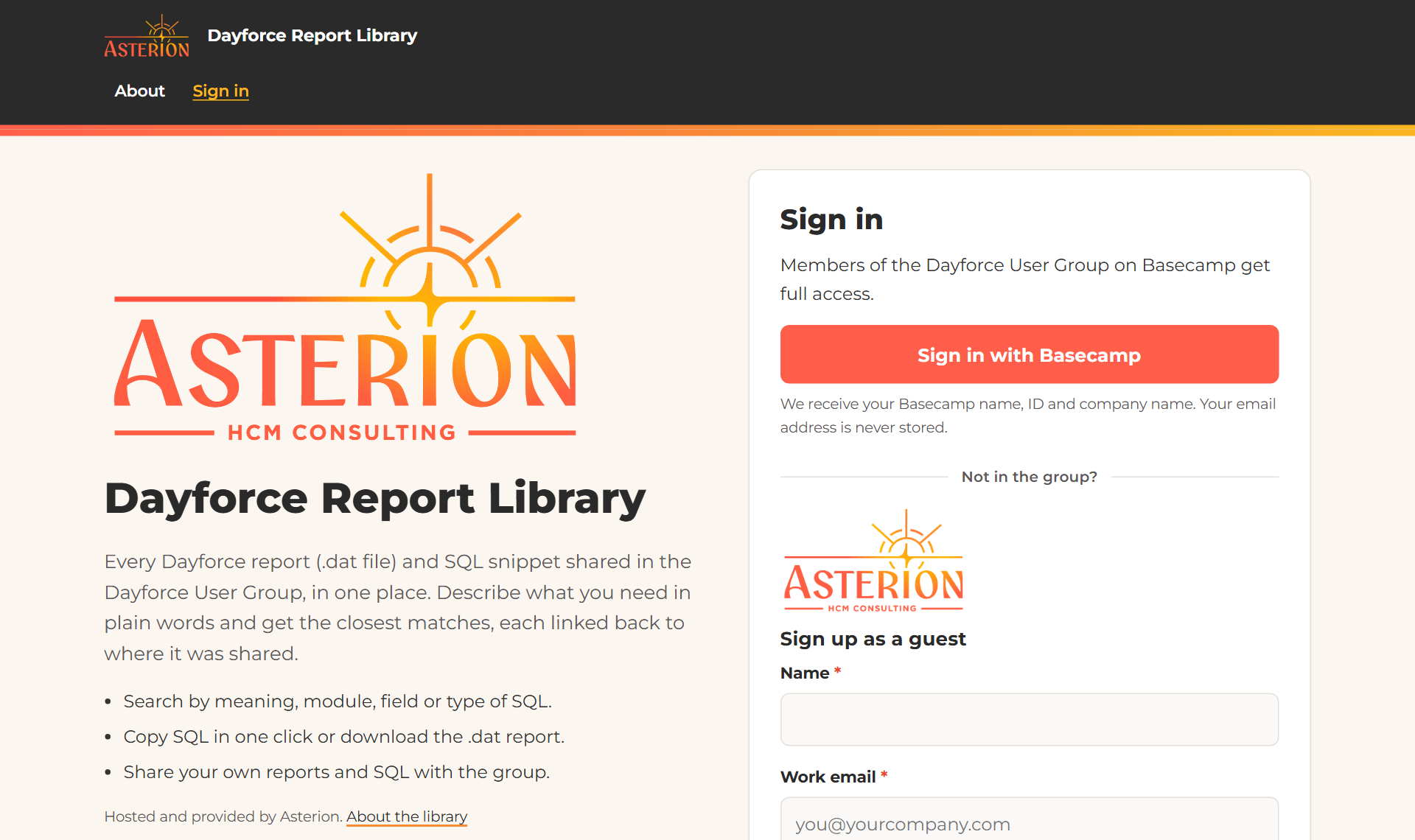
1. Sign in
Go to asterionllc.io/library.
- Dayforce User Group members: click Sign in with Basecamp and use your normal Basecamp login. You get full access, and there's nothing to set up.
- Not in the group? Sign up as a guest with your name and work email. We email you a code to finish signing in.
2. Search in plain words
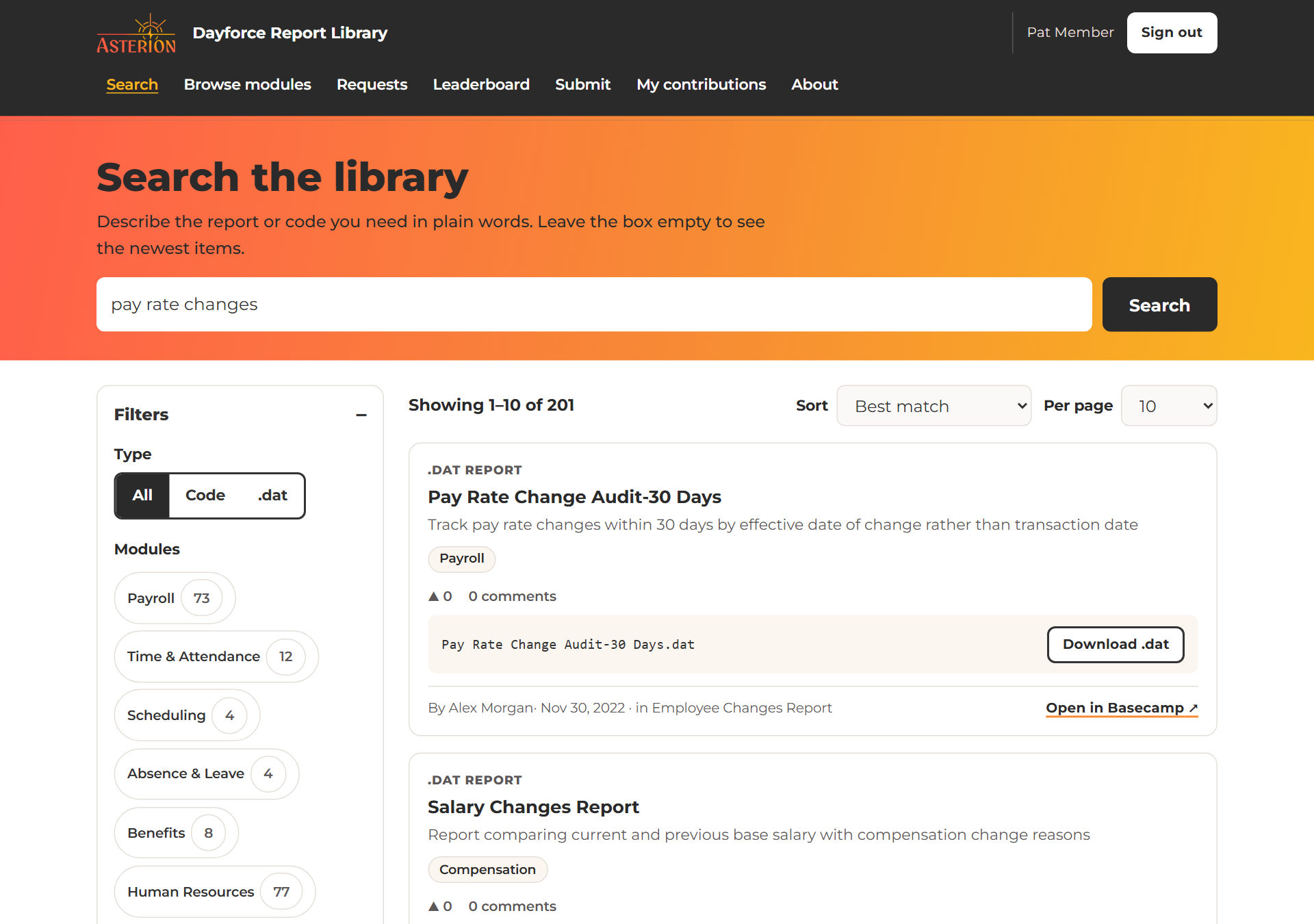
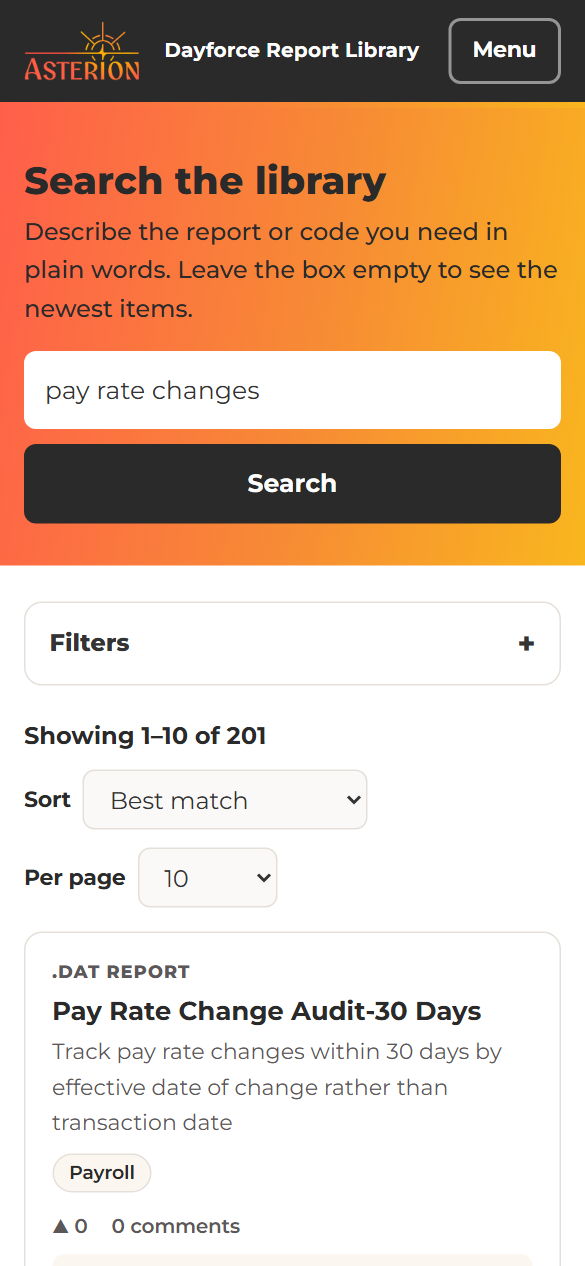
Type what you need the way you'd ask a colleague, for example "pay rate changes", "employees missing a manager" or "format a phone number". You don't need the file name. Search understands meaning, so it finds reports that use different words for the same thing.
Each result shows:
- what kind of item it is (a .dat report or a type of code);
- a short summary and its modules;
- votes and comments from other members;
- a Download .dat or Copy code button;
- who shared it and when, with an Open in Basecamp link to the original thread.
Use Sort to switch between Best match, Newest, Top rated, Most discussed and Most used, and Per page to show more results.
3. Narrow it down with filters
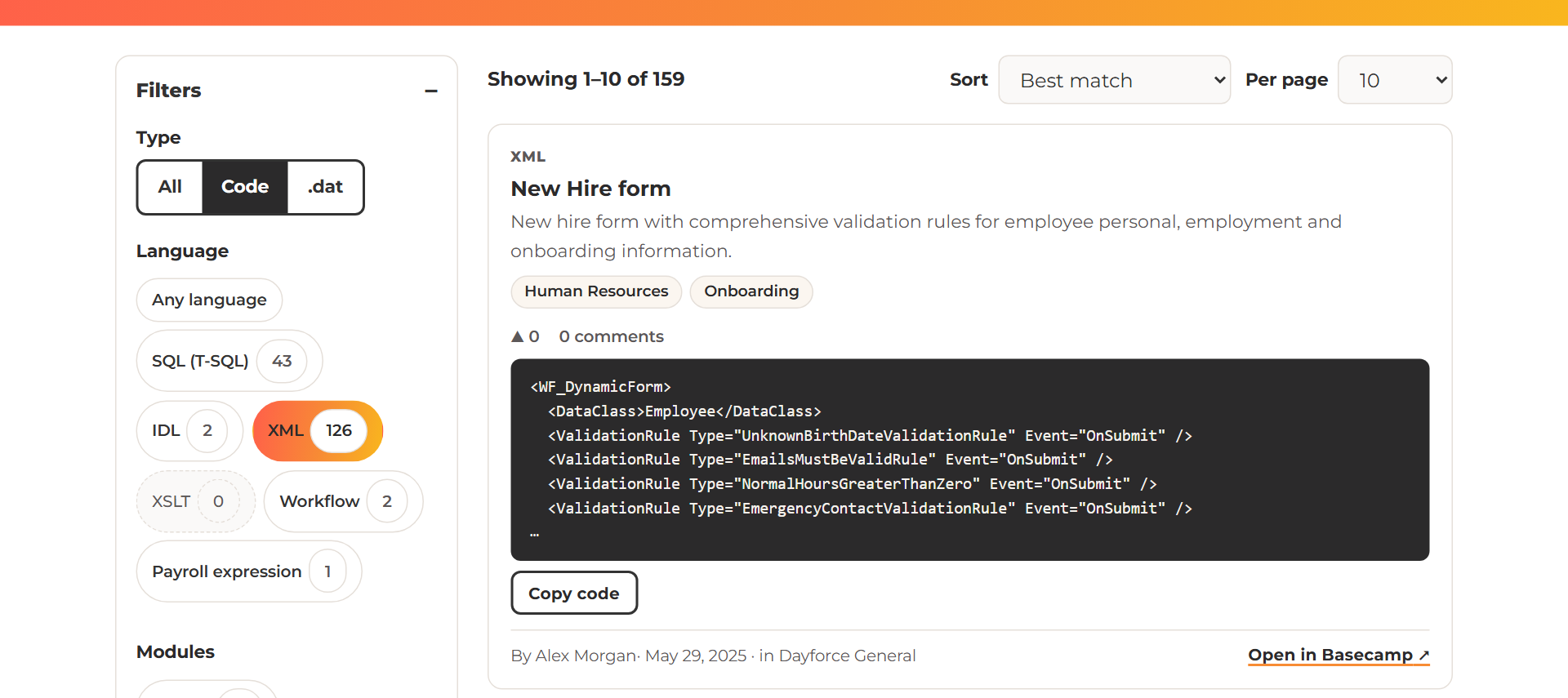
- Type: All, Code or .dat reports.
- Language (shown when you pick Code): SQL (T-SQL), IDL (Integration Studio), XML, XSLT, Workflow or Payroll expression. The numbers show how many matches each one has.
- Modules: Payroll, Benefits, Time & Attendance, Recruiting and more. An item can belong to several.
- Raw table reports only, Field (for example
Employee.XRefCode) and Source narrow things further.
Filters and search work together. The counts update as you change them, and Clear filters resets everything.
4. Open an item
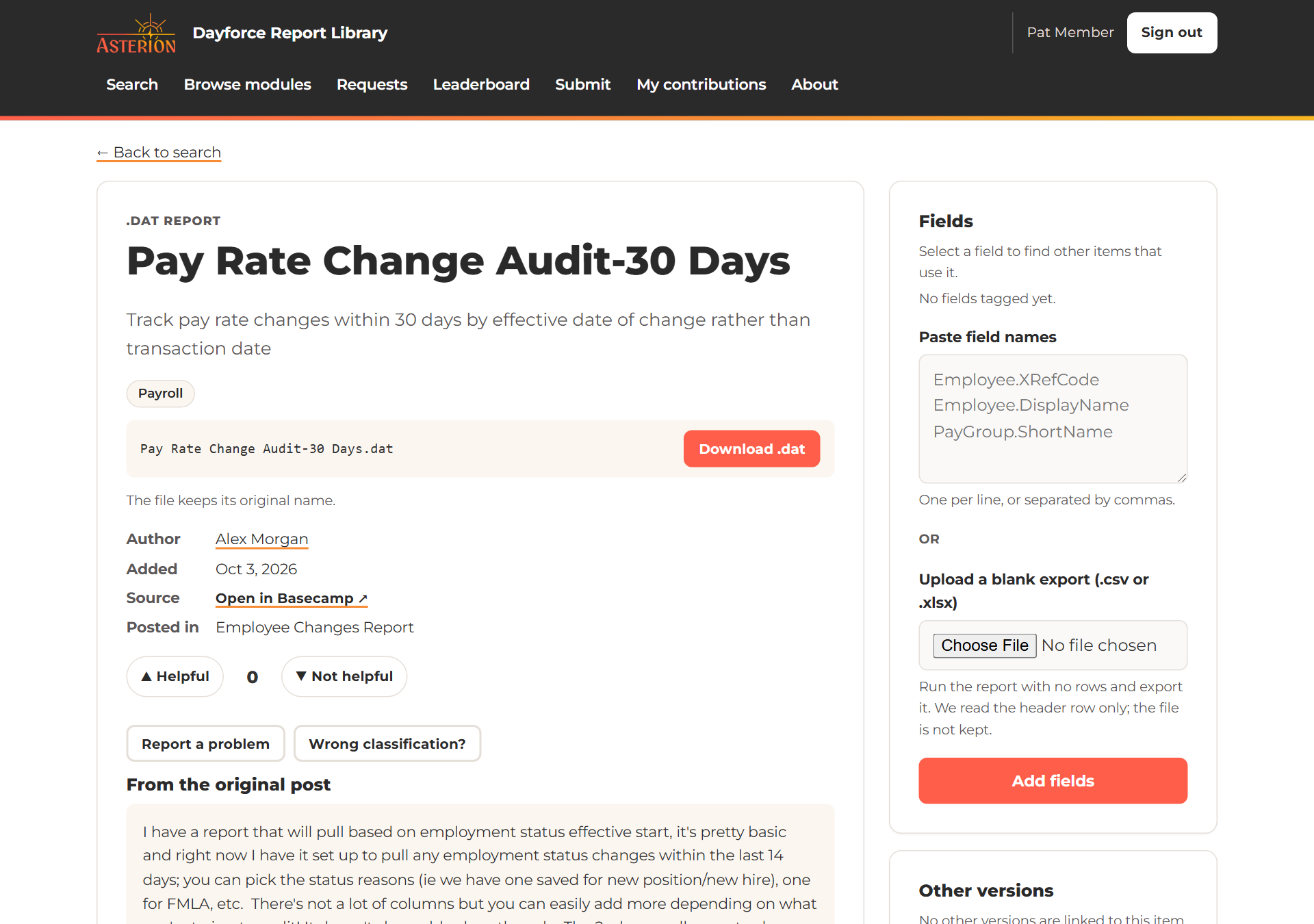
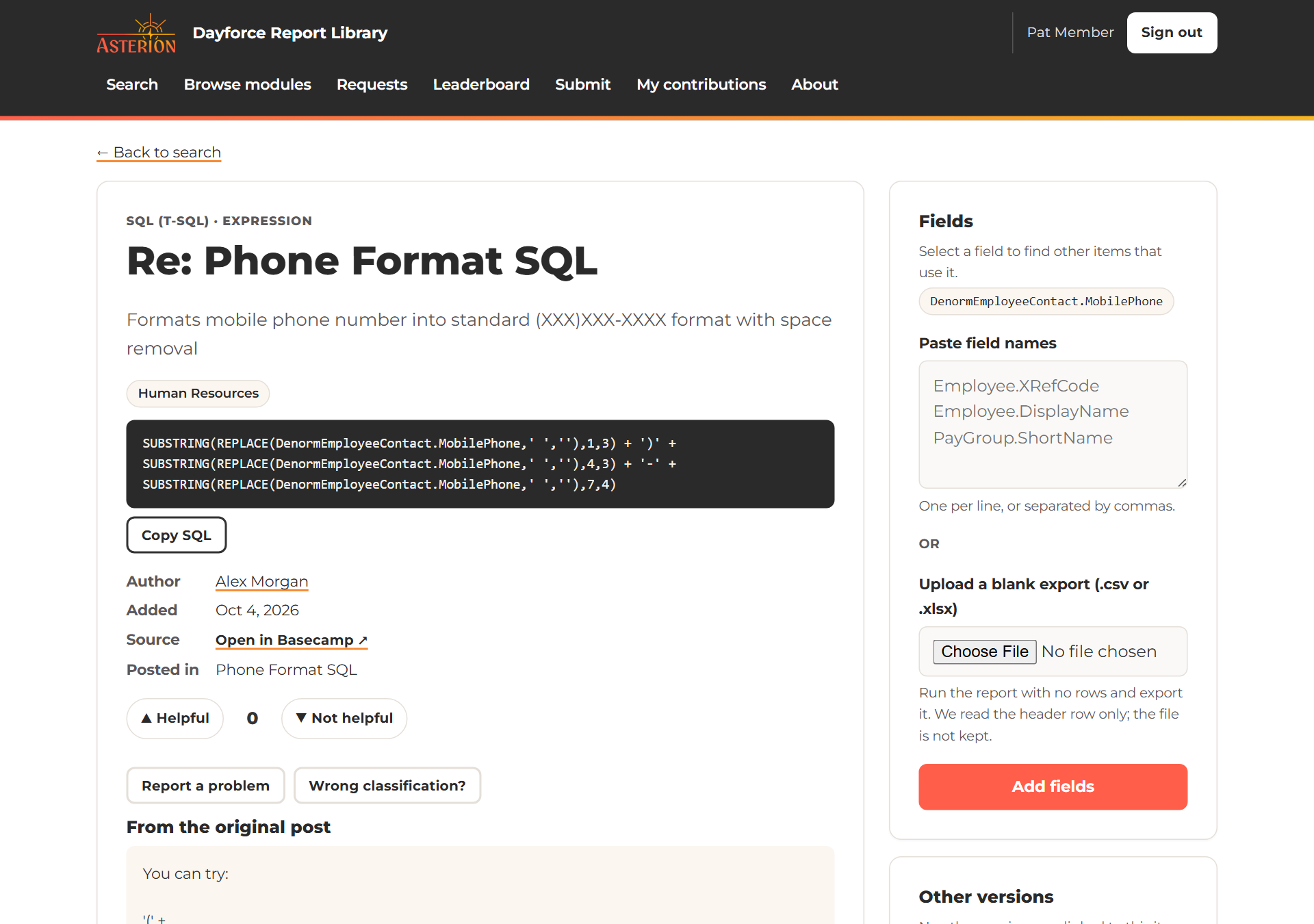
Click a title to see everything about it:
- the full summary, modules and file;
- From the original post: the Basecamp message it came from, so you know what it was built for;
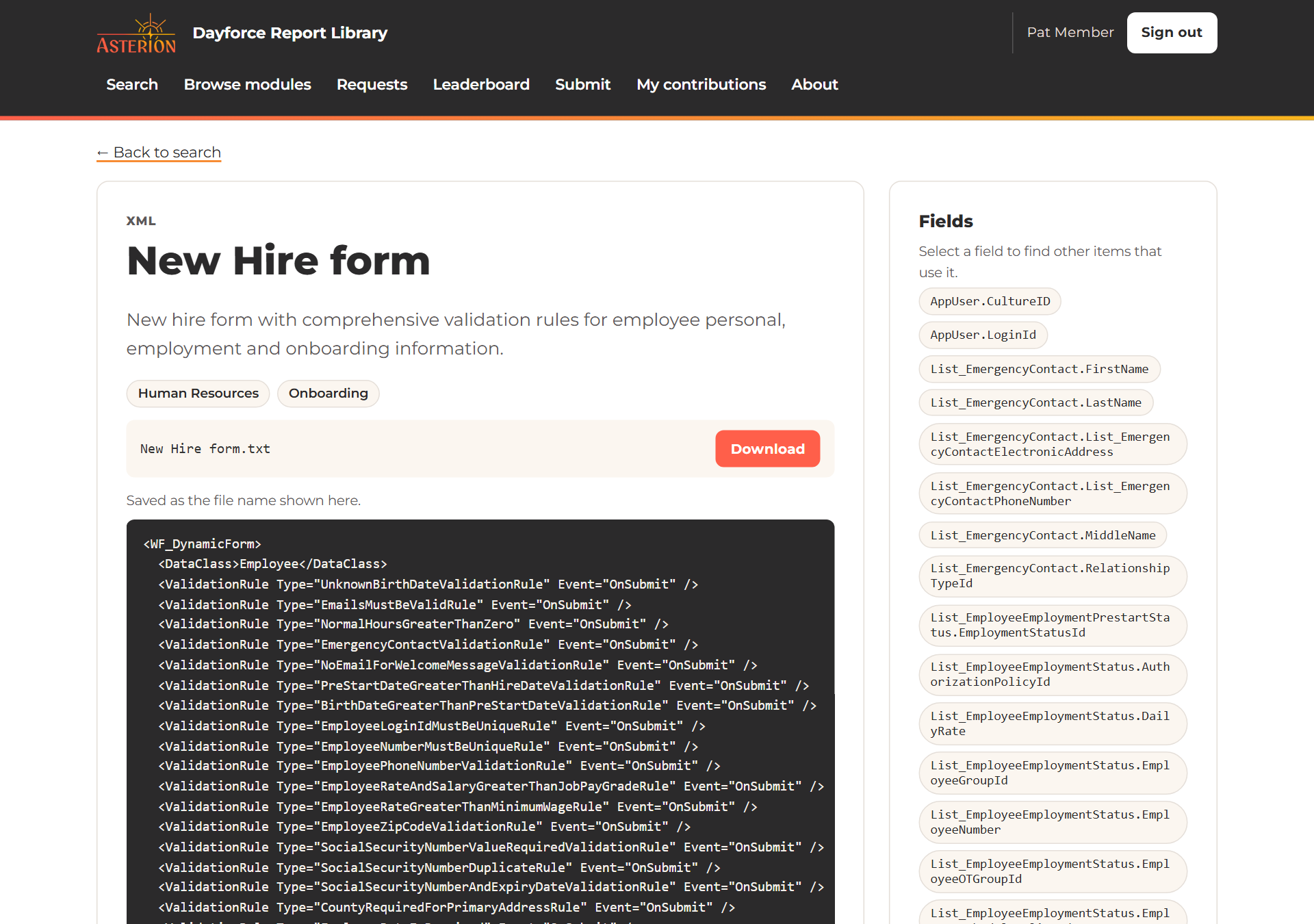
- the Fields it uses (click one to find other items that use the same field);
- Other versions of the same report and Related items.
5. Copy code and download files
- .dat reports: click Download .dat, then import the file in Dayforce Report Builder.
- SQL and expressions: click Copy SQL (or Copy code) and paste it into your report's custom field or filter.
- Attached files such as XML forms and Integration Studio exports: click Download to save the file under its own name. Passwords and connection details in shared configs are removed before anything is stored.
6. Vote, comment and report problems
The library gets better the more people use it:
- Helpful / Not helpful: votes push the best items up the results.
- Comments: tell others whether it worked for you, or share a tip.
- Report a problem: flag a report that broke, for example after a Dayforce release. You'll be asked to describe the problem, and the item is marked so others know.
- Wrong classification? suggest a better module or code type. It changes once another member agrees.
Voting and commenting are for group members; guests can read everything they can see.
7. Ask for something that isn't there
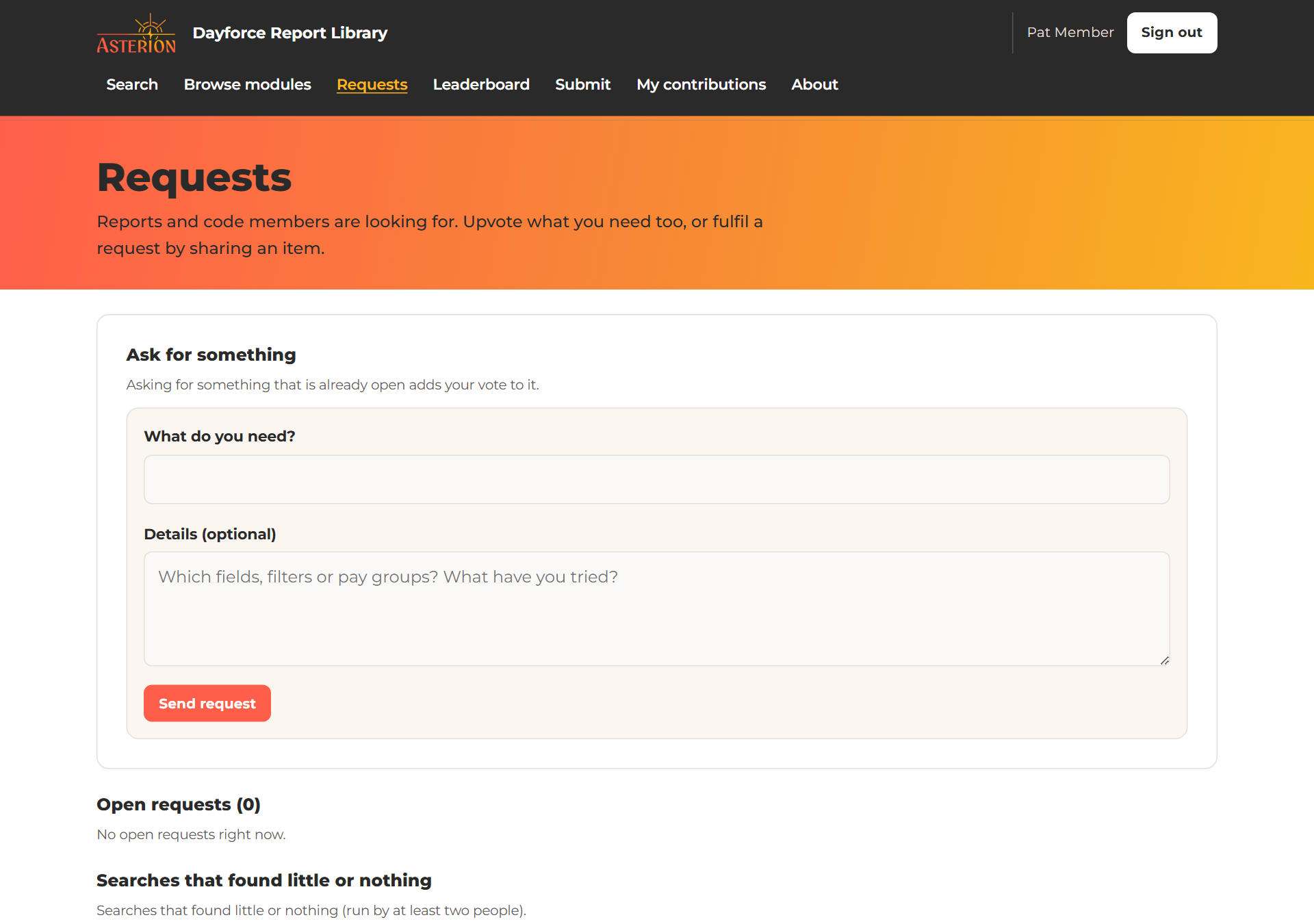
Can't find it? Open Requests, describe what you need and click Send request. Upvote other people's requests so the most-wanted ones rise. When someone shares an item that fills a request, they can link it and you'll see it marked as fulfilled. If a search finds little or nothing, you'll also see a Request this link right under the results.
8. Share your own work
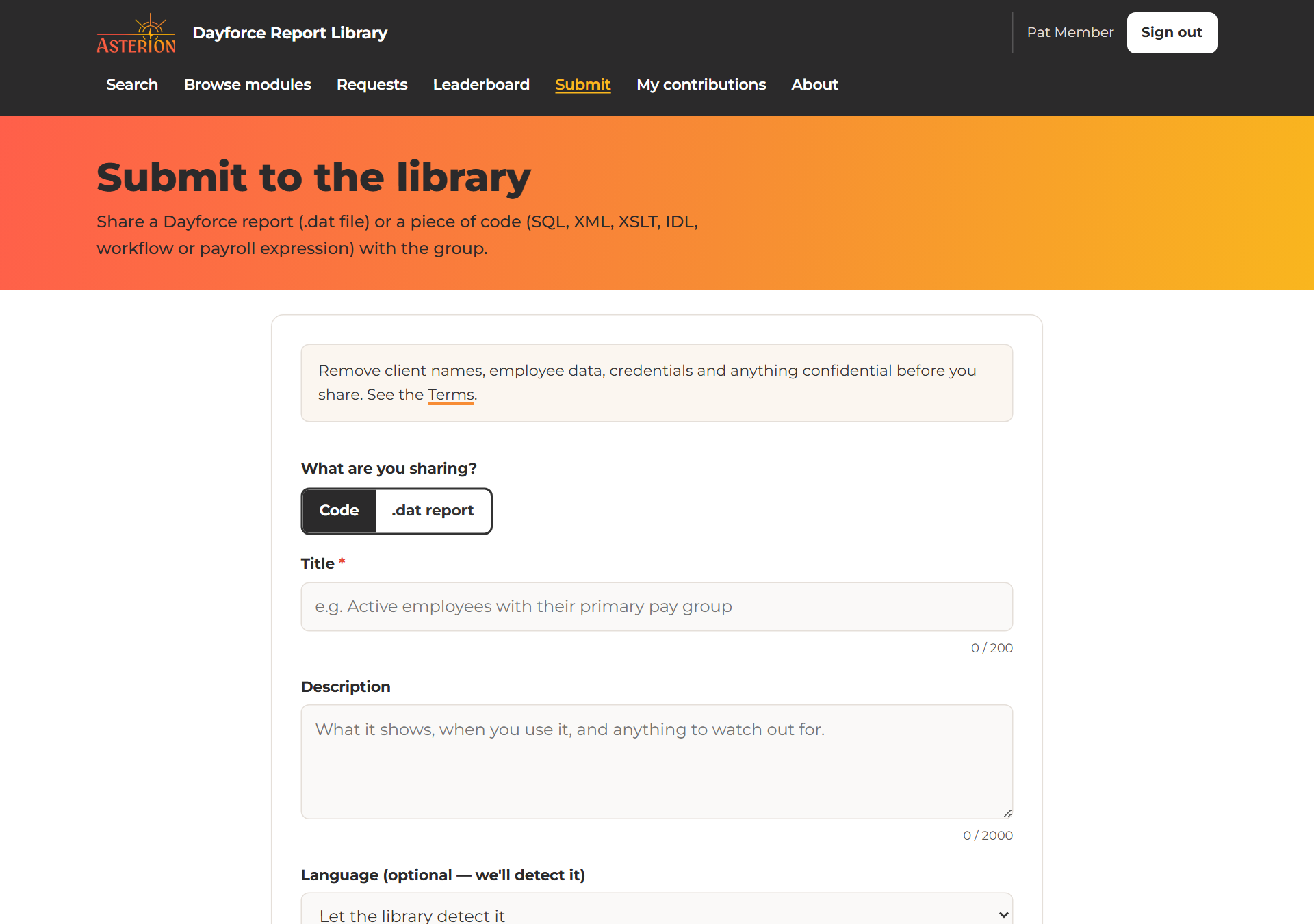
Everything shared in the Dayforce User Group on Basecamp is added automatically every night, so the easiest way to share is to keep posting there. You can also add something directly on the Submit page: upload a .dat file or paste SQL or other code, give it a title and a short description, and pick its modules.
On anything you shared, you choose who can see it (for example "Group members only"). My contributions lists everything you've shared.
9. Leaderboard and badges
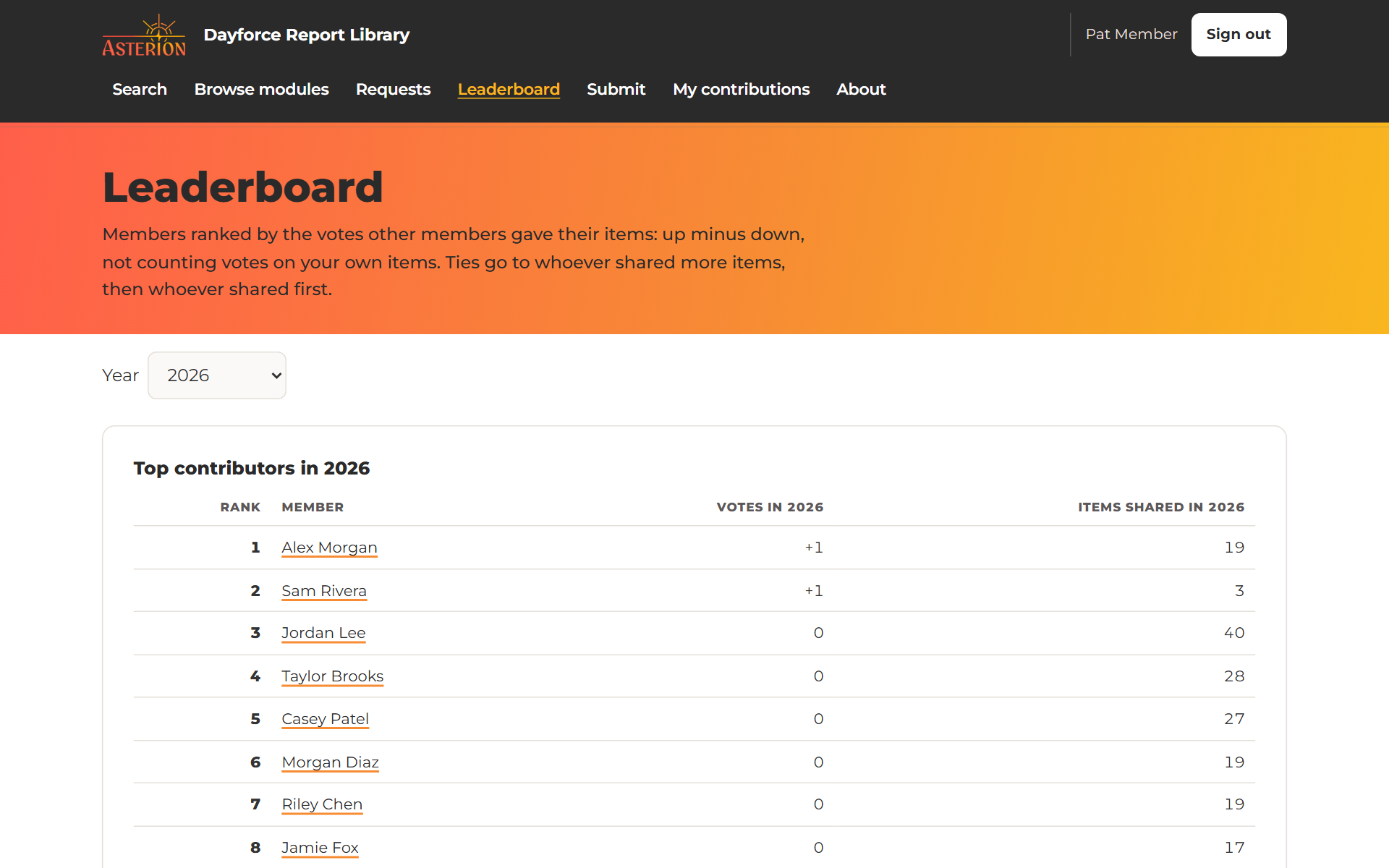
Members earn badges for what they share: Contributor after one item, Prolific contributor after five, and Top contributor for the all-time top 10 by votes. The Leaderboard shows the top contributors for each year. Click any name to see that person's profile and everything they've shared.
On your phone
The library works on any screen. On a phone, tap Menu for the pages, and Filters opens above the results.
Questions?
Reply in the Dayforce User Group on Basecamp, use Report a problem on any item, or email info@asterionllc.io. Read more about the library on the About page.
Screenshots are from the live library. Members' names have been replaced.